Automated value emails from Jedox Integrator with a generic Groovy template
Every month somebody exports a report, cuts it into one piece per cost center and emails each owner their numbers. This post replaces that with one Integrator job. It reads Budget and Actual from a cube, builds a formatted email for each cost center owner and sends it.
The job is built so that you rarely touch the code. Recipients live in a CSV file, the look of the email lives in an HTML file, and everything else (period, versions, subject, test mode) is a job variable.
Everything runs on the site's made-up sample data: 10 cost centers and 8 accounts, the same files as the other posts. Every address is on example.com, which never delivers anywhere.
What you'll build
- A Cube extract that reads Budget and Actual for one period from the
PnLcube. - A Groovy job that turns each cost center's values into an HTML email and sends it.
- A test mode, on by default, that sends every email to one test address first.
1. How Integrator sends email
There's no mail component in Integrator. You send email from a Groovy job, using the mailer the job API gives you:
def mailer = API.getMailer()
mailer.addRecipient('owner.cc4010@example.com')
mailer.setSubject('CC4010 Actual vs Budget, 2026-03')
mailer.setHtmlMessage(html)
mailer.send()
mailer.reset() // clear recipients, subject and body before the next email
Job or function?
Integrator runs Groovy in two places. A Groovy job is a job of its own, which you can run directly or call from another job. It can run extracts and loads, read job variables and send email, and the value-email script in this post is one. A Groovy function sits inside a transform, calculates a value for each row, and returns it. If you're building the email script from this post, choose a job.
addCcRecipient and addBccRecipient work the same way as addRecipient. addAttachment(filename) attaches a file. The docs don't say which folder a relative path starts from, so check in your Integrator (or use API.getLocalFilesDir()).
Older examples are out of date. Since Jedox 24.2, the SMTP server and the From address are set centrally in Cloud Console. Scripts can't set them anymore. You'll still see
setServer(),setSMTPServer()andsetSender()in older examples, including Jedox's own SendMail sample. On 24.2 and later these calls do nothing apart from logging a deprecation warning. If mail doesn't arrive, check the Cloud Console settings, not the script.
2. The ${...} trap
Integrator writes its own variables as ${NAME}. You'll use that in the extract below, for example ${PERIOD}. Groovy uses the same syntax: inside a double-quoted string, "${x}" is replaced by the value of x.
That's a problem for an email template. If the template used ${TITLE} markers and you pasted it into the job script, either Integrator or Groovy could replace the markers, or fail on them, before your code ever saw them.
So this job follows three rules:
- The template uses
{{TITLE}}-style markers, which neither Integrator nor Groovy touches. - The template is a separate file, loaded at run time, not pasted into the script.
- The script uses only single-quoted strings and contains no
${at all, not even in comments.
3. The files
| File | What it is | Where it goes |
|---|---|---|
email-template.html |
The email layout: 600px wide, inline styles, with 12 {{...}} markers |
Local files folder |
recipients.csv |
One row per cost center: cost_center,owner_email,owner_name |
Local files folder |
dim_account.csv |
Account names and types (REVENUE or EXPENSE) |
Local files folder |
dim_cost_center.csv |
Cost center names | Local files folder |
send_value_emails.groovy |
The job script | Pasted into a Groovy job |
recipients.csv in the download has a made-up owner for each of the 10 sample cost centers:
cost_center,owner_email,owner_name
CC1000,owner.cc1000@example.com,Alex Example
CC1010,owner.cc1010@example.com,Blake Example
...
In the Integrator project, create one File connection for each of the four data files, location type FileSystem. A relative path points into the local files folder. Name them EmailTemplate, EmailRecipients, Accounts and CostCenters, and set each one's file name to its job variable, for example ${TEMPLATE_FILE}. The script reads them through these connections, so moving a file means changing a variable, not the code.
4. The job variables
| Variable | Default | What it does |
|---|---|---|
TEST_MODE |
true |
Anything except false sends every email to RECIPIENT_TEST only |
RECIPIENT_TEST |
test.recipient@example.com |
Where test emails go |
PERIOD |
2026-03 |
The month to report, as a Period element |
VERSION_PLAN |
Budget |
The plan version element |
VERSION_ACTUAL |
Actual |
The actual version element |
SUBJECT_TEMPLATE |
{{COST_CENTER}} {{VERSION_ACTUAL}} vs {{VERSION_PLAN}}, {{PERIOD}} |
Email subject, with {{...}} markers |
COLOR_VARIANCE |
true |
Highlight unfavorable variances; false turns it off |
SOURCE_EXTRACT |
PnL_BudgetActual |
Name of the Cube extract |
TEMPLATE_FILE |
email-template.html |
File name used by the EmailTemplate connection |
RECIPIENTS_FILE |
recipients.csv |
File name used by the EmailRecipients connection |
ACCOUNTS_FILE |
dim_account.csv |
File name used by the Accounts connection |
COST_CENTERS_FILE |
dim_cost_center.csv |
File name used by the CostCenters connection |
Keep the defaults safe. Someone who runs the job as downloaded should only ever email the test address.
5. The extract
Create a Cube extract named PnL_BudgetActual on the cube PnL, with the dimensions Version, Period, CostCenter and Account:
| Dimension | Filter |
|---|---|
Version |
${VERSION_PLAN} and ${VERSION_ACTUAL} |
Period |
${PERIOD} |
CostCenter |
No filter |
Account |
No filter |
Turn on Base elements only in the Cube extract, so only cells where all elements are base elements are returned. Filter Version and Period; leave CostCenter and Account unfiltered. Set empty cells to excludeEmpty, so cost centers with no values give no rows. Run the extract's preview and check it shows no empty rows. A cost center with no values for the month should then get no email.
The output has one column per dimension plus a value column. Its name isn't stated in the Cube extract docs, so check it in the extract's preview. The script expects #Value; if your preview shows another name, set Rename value to #Value in the extract, or change '#Value' in src.getColumnValue('#Value') in send_value_emails.groovy. Check the dimension columns (Version, Period, CostCenter, Account) in the preview too. It's on line 362, or search the script for #Value. The dimension column names are read on the lines just above it.
6. The script, part 1: the builder
The script has two parts. Part 1 is plain Groovy with no Jedox calls. It takes the values for one cost center and returns the finished subject and HTML. Because it doesn't need Jedox, you can run and test it on any machine with Groovy installed.
Three functions do the careful work. First, every value is escaped before it goes into the HTML:
@Field final Map<String, String> HTML_ESCAPES = [
'&': '&', '<': '<', '>': '>', '"': '"', '\'': ''',
'$': '$', '{': '{', '}': '}'
]
$, { and } are encoded too. They look the same in the email, but data can never turn into a marker. A cost center called R&D <Lab> $5 shows up as exactly that text.
Second, the markers are filled in one pass from left to right, as plain text:
String fillMarkers(String template, Map<String, String> values) {
    StringBuilder out = new StringBuilder(template.length() + 1024)
    int pos = 0
    while (true) {
        int start = template.indexOf('{{', pos)
        if (start < 0) {
            out.append(template.substring(pos))
            break
        }
        int end = template.indexOf('}}', start + 2)
        if (end < 0) {
            throw new IllegalStateException('Unclosed {{ marker at position ' + start)
        }
        String name = template.substring(start + 2, end)
        if (!values.containsKey(name)) {
            throw new IllegalStateException('No value for marker {{' + name + '}}')
        }
        out.append(template.substring(pos, start))
        Object v = values.get(name)
        out.append(v == null ? '' : v.toString())
        pos = end + 2
    }
    return out.toString()
}
There's no regular expression and no Groovy string expansion, and a value that has been put in is never scanned again. A marker the script doesn't know about stops the job.
Third, before anything is sent, the finished email is checked once more:
void assertNoLeftovers(String html, String context) {
    String dollarBrace = '$' + '{'
    if (html.contains('{{') || html.contains('}}') || html.contains(dollarBrace)) {
        throw new IllegalStateException('Leftover {{ or dollar-brace marker in ' + context)
    }
}
'$' + '{' is split on purpose, so the script itself never contains the two characters together.
The rest of part 1 builds the table from Web Designer's cell snippets: a header row, one row per account with every second row shaded, and a total row. It also checks that the template contains all 12 markers (SUBJECT, HEADER_LABEL, TITLE, PERIOD, VERSION, GREETING, INTRO, HEADER_CELLS, TABLE_ROWS, TOTAL_CELLS, NOTE, FOOTER) and stops if one is missing.
Variance colors
Variance is Actual minus Budget. Whether that's good news depends on the account type, the same rule as in Plan vs. actuals in Snowflake:
- Expense: actual below budget is favorable.
- Revenue: actual above budget is favorable.
Only unfavorable variances are highlighted, in #C2410C. A negative number on its own isn't a warning sign: on an expense, it means you spent less than planned.
The total row
The sample stores revenue and expense as positive numbers, so adding them up would mean nothing. For a cost center that has revenue, the total row shows the net result (revenue minus expense), with revenue's favorability rule. For a cost center with only expenses, it shows total expense.
7. The script, part 2: the Jedox block
This is the only part that touches Jedox. It reads the job variables, the four files and the extract, then sends one email per cost center.
// ============================== PART 2: Jedox block ===============================
// Everything above runs without Jedox. Everything below needs the job's bindings:
// API (JobAPI), FILE (FileAPI) and LOG.

if (!binding.hasVariable('API')) {
    println 'No Jedox API found: PART 1 loaded, nothing sent.'
    return
}

Closure<String> setting = { String name, String fallback ->
    Object v = API.getProperty(name)
    (v == null || v.toString().trim().isEmpty()) ? fallback : v.toString().trim()
}
Closure<String> readFile = { String connectionName ->
    InputStream is = FILE.readBinary(connectionName)
    try { return is.getText('UTF-8') } finally { is.close() }
}

// Anything other than 'false' keeps test mode on.
boolean testMode = !setting('TEST_MODE', 'true').equalsIgnoreCase('false')
String testTo = setting('RECIPIENT_TEST', 'test.recipient@example.com')
String period = setting('PERIOD', '2026-03')
String vPlan = setting('VERSION_PLAN', 'Budget')
String vActual = setting('VERSION_ACTUAL', 'Actual')
String subjectTpl = setting('SUBJECT_TEMPLATE', '{{COST_CENTER}} {{VERSION_ACTUAL}} vs {{VERSION_PLAN}}, {{PERIOD}}')
boolean colorVar = !setting('COLOR_VARIANCE', 'true').equalsIgnoreCase('false')
String extractName = setting('SOURCE_EXTRACT', 'PnL_BudgetActual')

// File connections (location FileSystem, relative to the local files folder).
// Their file names are the job variables TEMPLATE_FILE, RECIPIENTS_FILE,
// ACCOUNTS_FILE and COST_CENTERS_FILE.
String template = readFile('EmailTemplate')
List<Map<String, String>> recipients = parseCsv(readFile('EmailRecipients'))
Map<String, Map<String, String>> accounts = [:]
parseCsv(readFile('Accounts')).each { r -> accounts[r.account] = [name: r.account_name, type: r.account_type] }
Map<String, String> ccNames = [:]
parseCsv(readFile('CostCenters')).each { r -> ccNames[r.cost_center] = r.cost_center_name }

// Read the Cube extract.
// Column names assume one column per dimension, named
// like the dimension, plus the value column. Check them in the extract's preview.
List<Map> rows = []
def src = API.initSource(extractName)
if (src == null) throw new IllegalStateException('Could not initialize extract ' + extractName)
while (src.nextRow()) {
    rows.add([costCenter: src.getColumnString('CostCenter'),
              account : src.getColumnString('Account'),
              version : src.getColumnString('Version'),
              value : src.getColumnValue('#Value')])
}
src.close()

Map<String, Map<String, Map<String, BigDecimal>>> amounts = groupAmounts(rows, vPlan, vActual)
(amounts.keySet() - recipients.collect { it.cost_center }).each { cc ->
    LOG.warn('No recipient for cost center ' + cc + ', skipped')
}

def mailer = API.getMailer()
int sent = 0
for (Map<String, String> r : recipients) {
    String cc = r.cost_center
    if (!amounts.containsKey(cc)) {
        LOG.warn('No values for ' + cc + ' in ' + period + ', no email')
        continue
    }
    Map<String, String> email = buildEmail(
        template: template, subjectTemplate: subjectTpl,
        costCenter: cc, costCenterName: ccNames[cc], ownerName: r.owner_name, ownerEmail: r.owner_email,
        period: period, versionPlan: vPlan, versionActual: vActual,
        amounts: amounts[cc], accounts: accounts, colorVariance: colorVar, testMode: testMode)
    String to = testMode ? testTo : r.owner_email
    mailer.reset()
    mailer.addRecipient(to)
    mailer.setSubject(email.subject)
    mailer.setHtmlMessage(email.html)
    mailer.send()
    sent++
    LOG.info('Email ' + sent + ': ' + cc + ' to ' + to + (testMode ? ' (test mode, intended ' + r.owner_email + ')' : '') + ', subject: ' + email.subject)
}
LOG.info('Done: ' + sent + ' emails, test mode ' + (testMode ? 'on' : 'off'))
A few details:
mailer.reset()runs before each email, so recipients and content from the previous email never carry over.- A cost center with values but no row in
recipients.csvis skipped with a warning in the log. So is a recipient whose cost center has no values that month. - An account that isn't in
dim_account.csvstops the job. A missing account would make the total row wrong without anyone noticing.
8. Test first
With TEST_MODE set to true, the default, every email goes to RECIPIENT_TEST. The subject starts with the address it would have gone to, for example:
The footer of the email says the same. The job log gets one line per email, with the cost center, the actual recipient and the subject, and a final count.
Open the test emails in Outlook, in a web mail client and on a phone. When they look right, set TEST_MODE to false for that run only, not in the variable's default.
You can also test the builder without Jedox. Copy part 1 into a Groovy script, feed it a few rows from the sample CSV files, and write the result to an .html file you can open in a browser.
9. What one email looks like
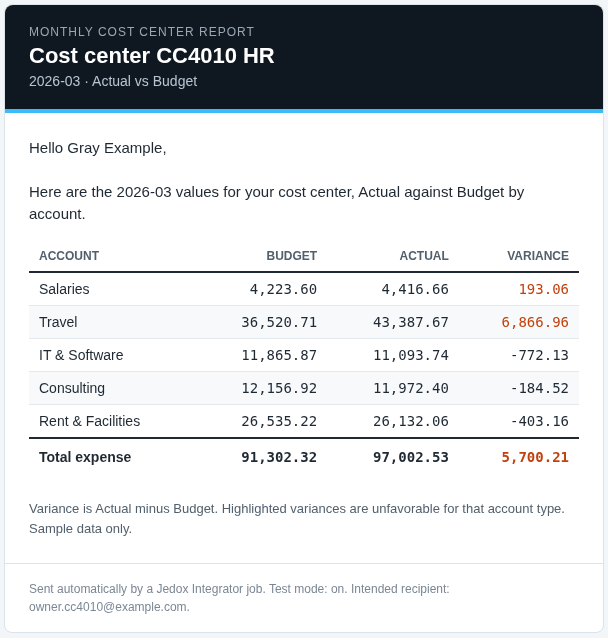
For CC4010 (HR) in March 2026, the sample data gives five expense accounts. The total row shows a Budget of 91,302.32 against an Actual of 97,002.53, so expenses are 5,700.21 over plan. Most of that is Travel: 43,387.67 actual against 36,520.71 budget, a variance of 6,866.96. Salaries is also slightly over, by 193.06. Travel, Salaries and the total are highlighted, because more expense than planned is unfavorable. IT & Software, Consulting and Rent & Facilities came in under budget, so their negative variances stay in the normal color.
10. How to change it
| You want to... | Change this |
|---|---|
| Add or change a recipient | A row in recipients.csv |
| Report a different month | PERIOD |
| Compare Forecast to Actual | VERSION_PLAN |
| Change the subject | SUBJECT_TEMPLATE |
| Restyle the email | email-template.html (keep all 12 {{...}} markers) |
| Change the greeting, intro, note or footer | The TEXT block at the top of the script |
| Turn off variance colors | COLOR_VARIANCE = false |
| Use a different cube or slice | The PnL_BudgetActual extract, or SOURCE_EXTRACT to point to another one |
| Move the files | TEMPLATE_FILE, RECIPIENTS_FILE, ACCOUNTS_FILE, COST_CENTERS_FILE |
| Copy a manager on every email | Add mailer.addCcRecipient(...) after addRecipient in part 2 |
| Send for real | TEST_MODE = false for that run |
Sending by something other than cost center
This job splits the emails by cost center, because in most FP&A teams the cost center owner is the person who answers for the numbers. You can split by another dimension of the same cube instead, such as country, ledger or a KPI. Three changes do it:
- In the Jedox block, read that dimension's column instead of
CostCenter. - In
recipients.csv, keep thecost_centerheader, but fill that column with the new dimension's elements. The script finds the column by its header name. - Point
COST_CENTERS_FILEat a file with display names for the new elements, using the samecost_centerandcost_center_nameheaders. Otherwise the names show up blank.
This only works when the new split really is a dimension of the cube. With Base elements only, the extract returns base elements, never consolidated totals. So if country or ledger is a consolidation level above your entities, or an attribute on them, this script can't group by it as written. You'd need a dimension that really holds those elements, or a small code change that groups the base elements by country before it builds the emails.
Keep the {{COST_CENTER}} marker names as they are, because the script stops on any marker it doesn't know. Only change the words around them in the TEXT block, for example 'Country {{COST_CENTER}}'. Test it in test mode before you switch it on.
Wrap-up
One extract, one Groovy job and three small files replace a monthly copy-and-paste routine. Three habits keep it safe: a template with {{...}} markers kept outside the script, values that are escaped and filled in one literal pass, and a test mode that's on until you deliberately turn it off.
Downloads
All files are synthetic sample data. Every address is on example.com.