Your VBA email macro after New Outlook
Lots of finance workbooks send their own reports: a macro builds the mail with CreateObject("Outlook.Application") and sends it. Microsoft says plainly that "VBA and Macros aren't supported in new Outlook" (VBA alternatives, Microsoft Learn). If your team moves to New Outlook, those macros need a new route.
What you'll build
- A quick way to tell which Outlook you're on.
- A macro that saves a draft file instead of failing silently.
- A short look at the three alternatives Microsoft names: Power Automate, Microsoft Graph and Office.js.
- A checklist for moving your existing report macros.
Before you start
You'll need
- Desktop Excel for Windows. The macro sends only through classic Outlook; without it, it saves the mail as a file.
recipients.csv(10 cost centers,@example.comaddresses). The addresses are made up.
The sample scenario
Your workbook has a macro that emails each cost center owner their numbers, here the 10 owners in recipients.csv. Today it does that through Outlook.
1. Which Outlook are you on?
Swipe to see the full diagram →
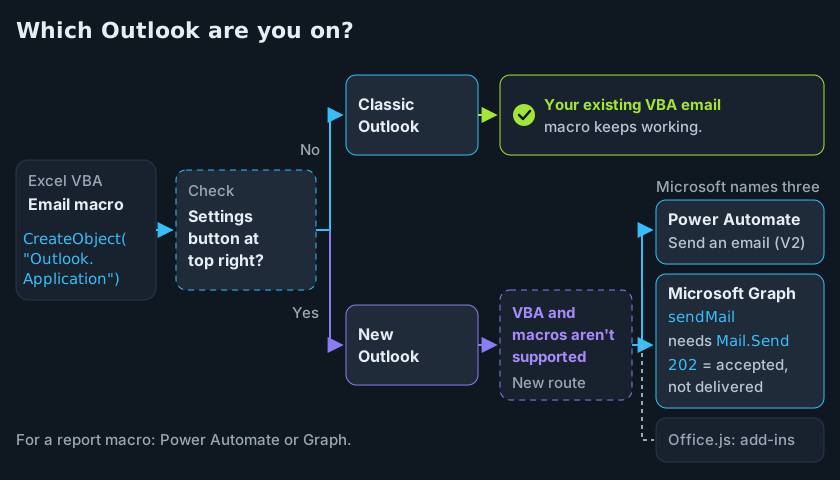
- Classic Outlook: If classic Outlook is still installed,
CreateObjectusually succeeds even when you work in New Outlook, so the fallback only kicks in when classic is missing or broken. - New Outlook: VBA and macros aren't supported, so the macro needs one of the alternatives in step 3 (source).
To check, look at the top right corner of Outlook. If there's a Settings button, you're on New Outlook. If it's missing, you're on classic Outlook. New Outlook's ribbon also only has the Home, View and Help tabs (What version of Outlook do I have?, Microsoft Support).
2. Don't fail silently: save a draft file
If the macro can't reach Outlook, save the message as a file so nothing gets lost. This is a pattern, not something we tested.
Option Explicit

Sub SendOrSave(toAddr As String, subj As String, body As String)
    Static n As Long
    Dim ol As Object, folder As String, f As Integer
    On Error Resume Next
    Set ol = CreateObject("Outlook.Application")
    If Not ol Is Nothing Then
        With ol.CreateItem(0)
            .To = toAddr
            .Subject = subj
            .Body = body
            .Send
        End With
        If Err.Number = 0 Then Exit Sub
    End If
    On Error GoTo 0
    folder = ThisWorkbook.Path
    If Len(folder) = 0 Or InStr(folder, "://") > 0 Then folder = Environ$("TEMP")
    n = n + 1
    f = FreeFile
    Open folder & "\unsent_" & Format(Now, "yyyymmdd_hhnnss") & "_" & n & ".txt" For Output As #f
    Print #f, "To: " & toAddr
    Print #f, "Subject: " & subj
    Print #f, body
    Close #f
    MsgBox "The mail couldn't be sent. It was saved in " & folder & ".", vbExclamation
End Sub
' This sends a REAL email through your Outlook. The example.com address will bounce;
' replace it with your own address if you want to see the mail arrive.
Sub TestSendOrSave()
    SendOrSave "owner.cc1000@example.com", "FDH test", "Test body"
End Sub
The saved .txt files hold the full mail body in plain text; delete each once the mail has been resent, and never point the fallback at a shared folder.
3. Pick an alternative
Microsoft names three (source):
- Power Automate, for automating flows between apps.
- Microsoft Graph, for advanced flows and email integrations.
- Office.js, for building web add-ins for Outlook.
For a report macro, the realistic choices are Power Automate or Graph. Graph's sendMail call needs the Mail.Send permission. It returns 202 Accepted, which only means the request was accepted, not that the mail was delivered, and by default it saves a copy in Sent Items (user: sendMail, Microsoft Learn). For a macro or flow sending as one person, use delegated Mail.Send. If IT grants application Mail.Send, limit it to the one sending mailbox with RBAC for Applications in Exchange Online.
In Power Automate, the Office 365 Outlook connector's action is Send an email (V2). It needs To, Subject and Body, and the Body is HTML. The older "Send an email" action is deprecated (Office 365 Outlook connector, Microsoft Learn). For a step-by-step guide, see Create flows for popular email scenarios.
4. Migration checklist
- List every workbook that calls
Outlook.Application. - Add the save-a-draft fallback from step 2 so nothing fails quietly.
- Choose Power Automate or Graph for each one, then ask IT about the permission it needs.
- Don't treat a Graph
202as proof of delivery.
Check the result
Expected: no mail lost
With Outlook unavailable, the macro saves an unsent_...txt file instead of ending without a word. This is the intended behavior. We haven't tested it on a live install.
If it doesn't match
- No file appears: check that the workbook is saved in a folder you can write to, and check the
%TEMP%folder. - The macro can't find Outlook even though it's open: check whether you're on New Outlook (step 1). One user in a Microsoft Q&A thread reports that their macro worked again after switching back to classic Outlook. That's one user's report, not a statement from Microsoft.
Wrap-up
New Outlook doesn't run VBA, so treat Outlook automation as something you'll need to move. Add the fallback now, then plan the move to Power Automate or Graph.
Downloads
All files use synthetic sample data and placeholder names.